Originally published on Medium: https://dariodip.medium.com/understanding-linux-containers-a-simple-recipe-7c24cc1137b4
What is a container? Actually, it is not a real thing.
In this post, I will try to explain what containers are and how they work, decomposing them and understanding their components, without going too deep in some concepts which require a way long explanation than the one I could give in a single post.
Currently, there are many technologies for containers (e.g. Docker, containerd, runC and so on), but this post is not going to talk about them and therefore, will be (almost) technology agnostic. This does not mean that you should take this information for implementing your own containers in production (this is totally insane, even if you are a nerd 😃).
What is a container?
A container is a form of OS virtualization that might be used to run an application. Inside a container, there should be all the necessary executables, binary code, libraries and configuration files to run the application.
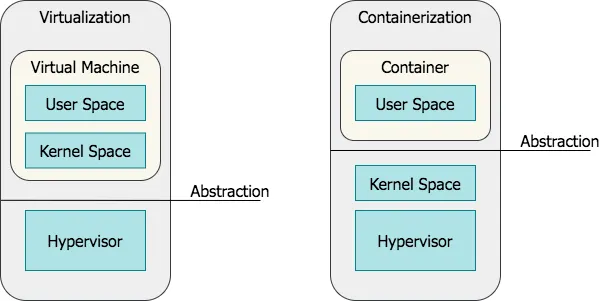
Containers are often confused with VMs. However, compared to them, containers do not contain operating system images (aka Kernel Space), making them more lightweight and portable, having significantly less overhead. On the other hand, virtual machines run in a hypervisor environment so that each virtual machine must include its own guest OS inside it, along with its related binaries, libraries, and application files. This is expensive because requires a large amount of system resources and overhead, especially when multiple VMs are running on the same physical server.
Basically, using a container we are moving the abstraction layer upper.
Ingredients
Containers are actually made of:
- User Space code;
- Control groups;
- Namespaces.
Let’s dive into these pieces one by one, gathering them together to create our container.
User Space vs Kernel Space
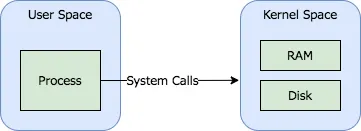
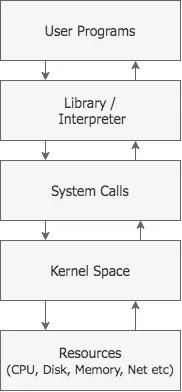
In order to start with our exploration, it is important to note that, in Linux, the kernel is the only layer of abstraction between programs and the resources they need to access.
Each process makes system calls:
Since containers are processes, they also make system calls:
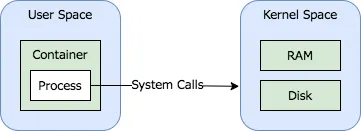
As we agreed, a container is a process and now we could ask: what about files and programs that are inside a container image? That bunch of files and programs are the container’s User Space.
The User Space is composed of all the code in an operating system that lives outside the kernel. The User Space can include programs that are written in C, Java, Python, Go and other programming languages. When we talk about containers, the User Space is what is delivered in a container image.
A good way to get and explore a container’s User Space is by pulling one, running it and, eventually, exporting it:
$ docker run -it --name alpine_us alpine:latest true
$  docker ps -a
CONTAINER ID        IMAGE               COMMAND             CREATED             STATUS                     PORTS               NAMES
bf1d7fd847ca        alpine:latest       "true"              6 seconds ago       Exited (0) 6 seconds ago                       alpine_us
$ docker container export alpine_us | tar -xf -
$  ls
bin   dev   etc   home  lib   media mnt   opt   proc  root  run   sbin  srv   sys   tmp   usr   var
Here is our User Space. This contains utilities such as sh, gzip and so on, and libraries:
$  ls bin
arch          chmod         dnsdomainname fdflush       hostname      linux32       mkdir         mv            printenv      run-parts     stty          uname
ash           chown         dumpkmap      fgrep         ionice        linux64       mknod         netstat       ps            sed           su            usleep
base64        cp            echo          fsync         iostat        ln            mktemp        nice          pwd           setpriv       sync          watch
bbconfig      date          ed            getopt        ipcalc        login         more          pidof         reformime     setserial     tar           zcat
busybox       dd            egrep         grep          kbd_mode      ls            mount         ping          rev           sh            touch
cat           df            false         gunzip        kill          lzop          mountpoint    ping6         rm            sleep         true
chgrp         dmesg         fatattr       gzip          link          makemime      mpstat        pipe_progress rmdir         stat          umount

$  ls usr/lib
engines-1.1                libcrypto.so.1.1           libssl.so.1.1              libtls-standalone.so.1     libtls-standalone.so.1.0.0 modules-load.d
All those programs work by manipulating data that come from registers in the CPU, external devices, memory or disk. In order to do that, they get access to data by making system calls to the kernel.
The kernel provides an abstraction for security, hardware and internal data structures. For example, the open(2) system call is commonly used to get a file handler and abstract the manipulation of files.
Now that we have our User Space, let’s explore the next ingredient.
Control Groups
cgroups (abbreviated from control groups) is a Linux kernel feature that limits, accounts for, and isolates the resource usage (CPU, memory, disk I/O, network, etc.) of a collection of processes. The control groups functionality was merged into the Linux kernel mainline in kernel version 2.6.24, which was released in January 2008.
Cgroups is a feature that enables:
- Resource limiting: groups can be set to not exceed a given memory limit;
- Prioritization: some groups may have a larger share of CPU utilization;
- Accounting: group’s resource consumption can be measured;
- Control: groups can be frozen and restarted.
Groups are materialized in the pseudo-filesystem mounted in /sys/fs/cgroup and are created by mkdir in the abovementioned pseudo-filesystem. To move a process from a cgroup to another, it should be added in the task file under that cgroup (for example, echo $PID > /sys/fs/cgroup/<SUBSYSTEM>/<SUBGROUP>/tasks).
In terms of cgroups, a “container” is a group of processes that share a set of parameters used by one or more subsystems (also called controllers); then all processes within the container inherit that same set. Other (not yet existing) subsystems could use containers to enforce limits on CPU time, I/O bandwidth usage, memory usage, filesystem visibility, and so on. Containers are hierarchical in form of trees.
The container mechanism is not limited to a single hierarchy; instead, the administrator can create as many hierarchies as desired. For example, you can create a different hierarchy for the control of network bandwidth usage and for the control of memory usage.
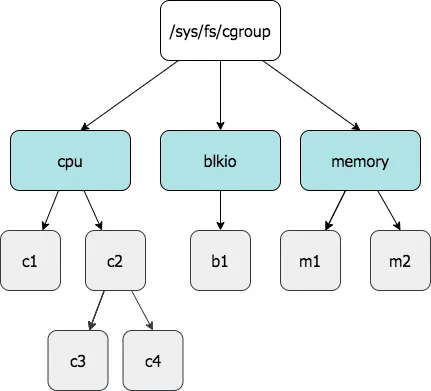
Different container hierarchies need not resemble each other in any way and a subsystem can only be attached to a single hierarchy. As soon as a machine boots, there is a tree of one node with the first process in the first node. This means that your whole machine is a container with no limits.
The administration of containers is performed through a special virtual filesystem. By default, all known subsystems are associated with a hierarchy, so a command like:
mount -t cgroup none /cgroups
would create a single container hierarchy with all known subsystems on /cgroups. A setup with different subsystems for CPU and network, instead, could be created with something like:
mount -t cgroup none -o cpu /cgroup
mount -t cgroup none -o net /cgroup
So, in order to create our group for example for blkio, for a process $PID we should proceed with the following steps:
$ sleep 3000 & PID=$!
$ mount -t cgroup none /cgroup -o blkio
$ mkdir /cgroup/mygroup
$ echo $PID > /cgroup/mygroup/tasks
And to check that our process is actually under our desired cgroup, we could check under /proc/$PID/cgroup:
# cat /proc/$PID/cgroup
9:freezer:/
8:pids:/user.slice/user-1001.slice/session-25.scope
7:net_cls,net_prio:/
6:cpuset:/
5:cpu,cpuacct:/user.slice
4:blkio:/mygroup
3:perf_event:/
2:devices:/user.slice
1:name=systemd:/user.slice/user-1001.slice/session-25.scope
0::/user.slice/user-1001.slice/session-25.scope
There we are! We made our cgroup working, let’s explore the next ingredient.
Namespaces
Namespaces are a feature of the Linux kernel that partitions kernel resources such that one set of processes sees one set of resources while another set of processes sees a different set of resources. A namespace wraps a global system resource in an abstraction that makes it appear to the processes within the namespace that they have their own isolated instance of the global resource. Changes to the global resource are visible to other processes that are members of the namespace but are invisible to other processes. One use of namespaces is to implement containers.
There are different type of namespaces available in Linux:
- cgroup: isolates cgroup root directory;
- IPC: isolates System V IPC and POSIX message queues;
- Network: isolates network devices, stacks, ports, etc.;
- Mount: isolates mount points;
- PID: isolates process IDs;
- Time: isolates boot and monotonic clocks;
- User: isolates users and groups IDs;
- UTS: isolates hostname and NIS domain name.
The kernel assigns each process a symbolic link per namespace kind in /proc/<PID>/ns/. The inode number pointed to by this symlink is the same for each process in this namespace. This uniquely identifies each namespace by the inode number pointed to by one of its symlinks.
Reading the symlink via readlink returns a string containing the namespace kind name and the inode number of the namespace. Here is an example of this:
$ sleep 3000 & PID1=$!
[1] 3261
$ sleep 3000 & PID2=$!
[2] 3262
$ ls -l /proc/$PID1/ns/ | awk '{print $1, $9, $10, $11}'
total
lrwxrwxrwx cgroup -> cgroup:[4026531835]
lrwxrwxrwx ipc -> ipc:[4026531839]
lrwxrwxrwx mnt -> mnt:[4026531840]
lrwxrwxrwx net -> net:[4026533321]
lrwxrwxrwx pid -> pid:[4026531836]
lrwxrwxrwx pid_for_children -> pid:[4026531836]
lrwxrwxrwx user -> user:[4026531837]
lrwxrwxrwx uts -> uts:[4026531838]
$ ls -l /proc/$PID2/ns/ | awk '{print $1, $9, $10, $11}'
total
lrwxrwxrwx cgroup -> cgroup:[4026531835]
lrwxrwxrwx ipc -> ipc:[4026531839]
lrwxrwxrwx mnt -> mnt:[4026531840]
lrwxrwxrwx net -> net:[4026533321]
lrwxrwxrwx pid -> pid:[4026531836]
lrwxrwxrwx pid_for_children -> pid:[4026531836]
lrwxrwxrwx user -> user:[4026531837]
lrwxrwxrwx uts -> uts:[4026531838]
In the above, it looks clear that the inode number is the same for both $PID1 and $PID2.
The namespaces API includes the following system calls:
clone(2): the clone system call creates a new process;setns(2): the setns system call allows the calling process to join an existing namespace;unshare(2): the unshare system call moves the calling process to a new namespace.
Let’s see that in action. Starting from the container we’ve exported in the section about User Space, let’s create a new namespace using unshare.
$ ls
bin  dev  etc  home  lib  media  mnt  opt  proc  root  run  sbin  srv  sys  tmp  usr  var
$ sudo SHELL=/bin/sh unshare --fork --pid --ipc --net chroot $(pwd) "$@"
/ # ls
bin    dev    etc    home   lib    media  mnt    opt    proc   root   run    sbin   srv    sys    tmp    usr    var
/ # cat /etc/os-release
NAME="Alpine Linux"
ID=alpine
VERSION_ID=3.13.4
PRETTY_NAME="Alpine Linux v3.13"
HOME_URL="[https://alpinelinux.org/](https://alpinelinux.org/)"
BUG_REPORT_URL="[https://bugs.alpinelinux.org/](https://bugs.alpinelinux.org/)"
As you can see, we are inside the new namespace, running our container as the root. Don’t you believe it? Let’s open another shell and let’s check it out:
$ ps -a
  PID TTY          TIME CMD
  786 pts/0    00:00:00 sudo
  787 pts/0    00:00:00 unshare
  788 pts/0    00:00:00 sh
  809 pts/1    00:00:00 ps
$ sudo ls -l /proc/4038/ns
total 0
lrwxrwxrwx 1 root root 0 Apr  6 15:47 cgroup -> 'cgroup:[4026531835]'
lrwxrwxrwx 1 root root 0 Apr  6 15:47 ipc -> 'ipc:[4026533573]'
lrwxrwxrwx 1 root root 0 Apr  6 15:47 mnt -> 'mnt:[4026531840]'
lrwxrwxrwx 1 root root 0 Apr  6 15:47 net -> 'net:[4026533576]'
lrwxrwxrwx 1 root root 0 Apr  6 15:47 pid -> 'pid:[4026531836]'
lrwxrwxrwx 1 root root 0 Apr  6 15:47 pid_for_children -> 'pid:[4026533574]'
lrwxrwxrwx 1 root root 0 Apr  6 15:47 user -> 'user:[4026531837]'
lrwxrwxrwx 1 root root 0 Apr  6 15:47 uts -> 'uts:[4026531838]'
$ sudo ls -l /proc/3100/ns
total 0
lrwxrwxrwx 1 dario dario 0 Apr  6 15:37 cgroup -> 'cgroup:[4026531835]'
lrwxrwxrwx 1 dario dario 0 Apr  6 15:10 ipc -> 'ipc:[4026531839]'
lrwxrwxrwx 1 dario dario 0 Apr  6 15:37 mnt -> 'mnt:[4026531840]'
lrwxrwxrwx 1 dario dario 0 Apr  6 15:37 net -> 'net:[4026533321]'
lrwxrwxrwx 1 dario dario 0 Apr  6 15:37 pid -> 'pid:[4026531836]'
lrwxrwxrwx 1 dario dario 0 Apr  6 15:37 pid_for_children -> 'pid:[4026531836]'
lrwxrwxrwx 1 dario dario 0 Apr  6 15:37 user -> 'user:[4026531837]'
lrwxrwxrwx 1 dario dario 0 Apr  6 15:37 uts -> 'uts:[4026531838]'
As you can see, the process bash (aka 3100) and unshare (aka 4038) have different inode numbers, meaning that they are under two different namespaces.
Conclusions
Now that you know how containers work, you could use them better, being more aware of what’s behind them (and you could stop confusing them with VMs). You could go over experimenting network, bind mounts and so on, or you could just pick Docker or containerd and go deeper with them.